Transferring Your License to a New Device
By default a SmartScanner license can be activated on a single machine/user. If you need to move the license to a new device (for example, when you get a new laptop), you must first remove (deactivate) the license from the old device.
If you need to use the license on multiple devices at the same time, you must purchase additional user seats/licenses. Contact our support team to buy or upgrade seats, they will assist with pricing and setup.
ℹ️ Prerequisites:
The device currently holding the license must be online (active Internet connection). You must have access to the account or the machine where SmartScanner is installed.
How to remove (deactivate) the license from the current device
- Open SmartScanner on the current device.
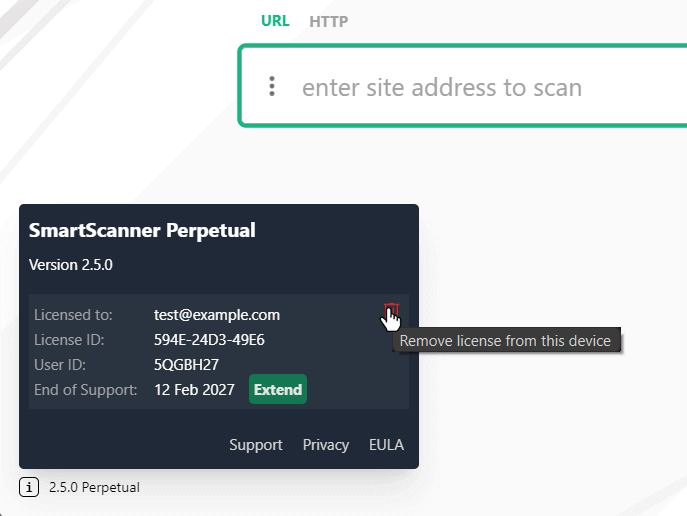
- Move your mouse over the small text that shows the version number (bottom-left corner of the SmartScanner window).
- A popup will appear showing your license information. Click the small trash-bin icon at the top-right corner of that box to remove the license.
- Confirm the license removal when prompted.
⚠️ Notes:
You need an active Internet connection to remove (deactivate) the license. After successful removal, the license will be available to activate on your new device.
Installing the license on the new device
- Install SmartScanner on your new device if it is not already installed.
- Open SmartScanner and enter your license key following the normal activation flow.
Troubleshooting
- If you no longer have access to the old device (lost, failed, or erased), contact our support team and provide proof of purchase and the license key. We can help remove the association.
- If you see an error while removing the license, check your Internet connection and try again. If the problem persists, save any screenshots of the error and contact support.
If anything goes wrong, or you need a simultaneous multi-device license, contact our support team with your license key and a brief description of the issue.
⚠️ Important: always keep a copy of your license key and any purchase confirmation in a safe place.